
Building & Debugging
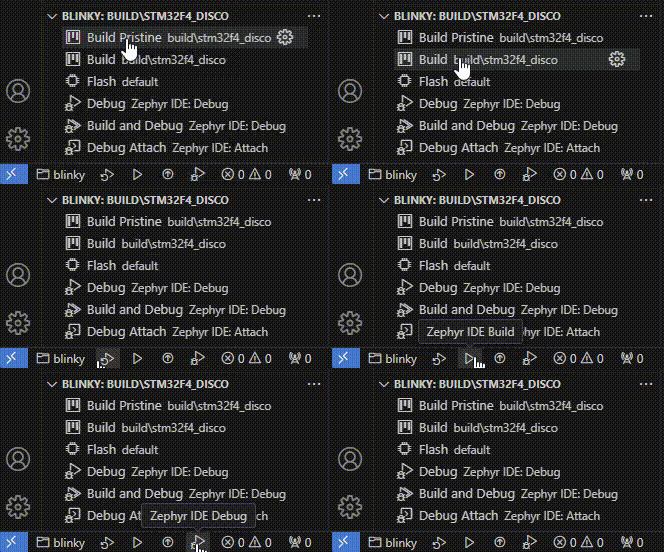
The project may now be built. This can be done with the Active Project Panel or Taskbar buttons. There are options to build pristine, build, flash and debug. The taskbar also displays the active project.
Building
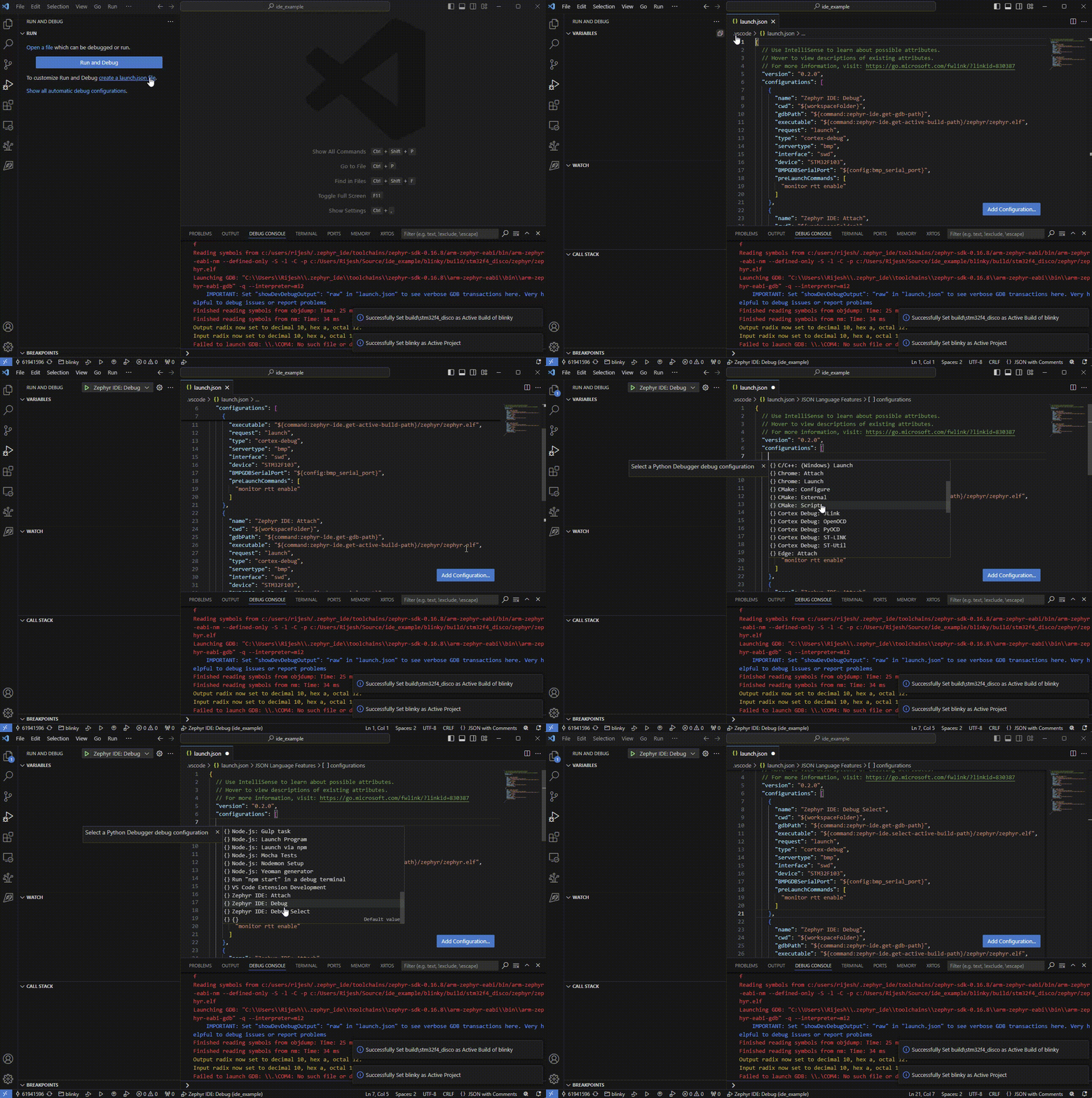
Setting Up Debug Configuration
To debug, launch configurations need to be setup. By default, Zephyr IDE provides 4 examples using cortex-debug. The examples use cortex debug and have a blackmagic probe and st-link configuration. There is a Debug and Attach configuration for each. The OpenOCD examples are configured for stlink and nrf52. A fifth example is also available called the Debug Select Configuration.
Launch Configuration Helper Commands
The IDE provides commands that help a user develop launch configurations. These include the following:
zephyr-ide.get-active-project-namezephyr-ide.get-active-project-pathzephyr-ide.get-active-build-pathzephyr-ide.get-active-build-board-pathzephyr-ide.select-active-build-pathzephyr-ide.get-gdb-pathzephyr-ide.get-arm-gdb-pathzephyr-ide.get-toolchain-pathzephyr-ide.get-zephyr-dirzephyr-ide.get-zephyr-elfzephyr-ide.get-zephyr-elf-dirzephyr-ide.get-zephyr-ide-json-variablezephyr-ide.get-active-project-variablezephyr-ide.get-active-build-variablezephyr-ide.get-active-board-name
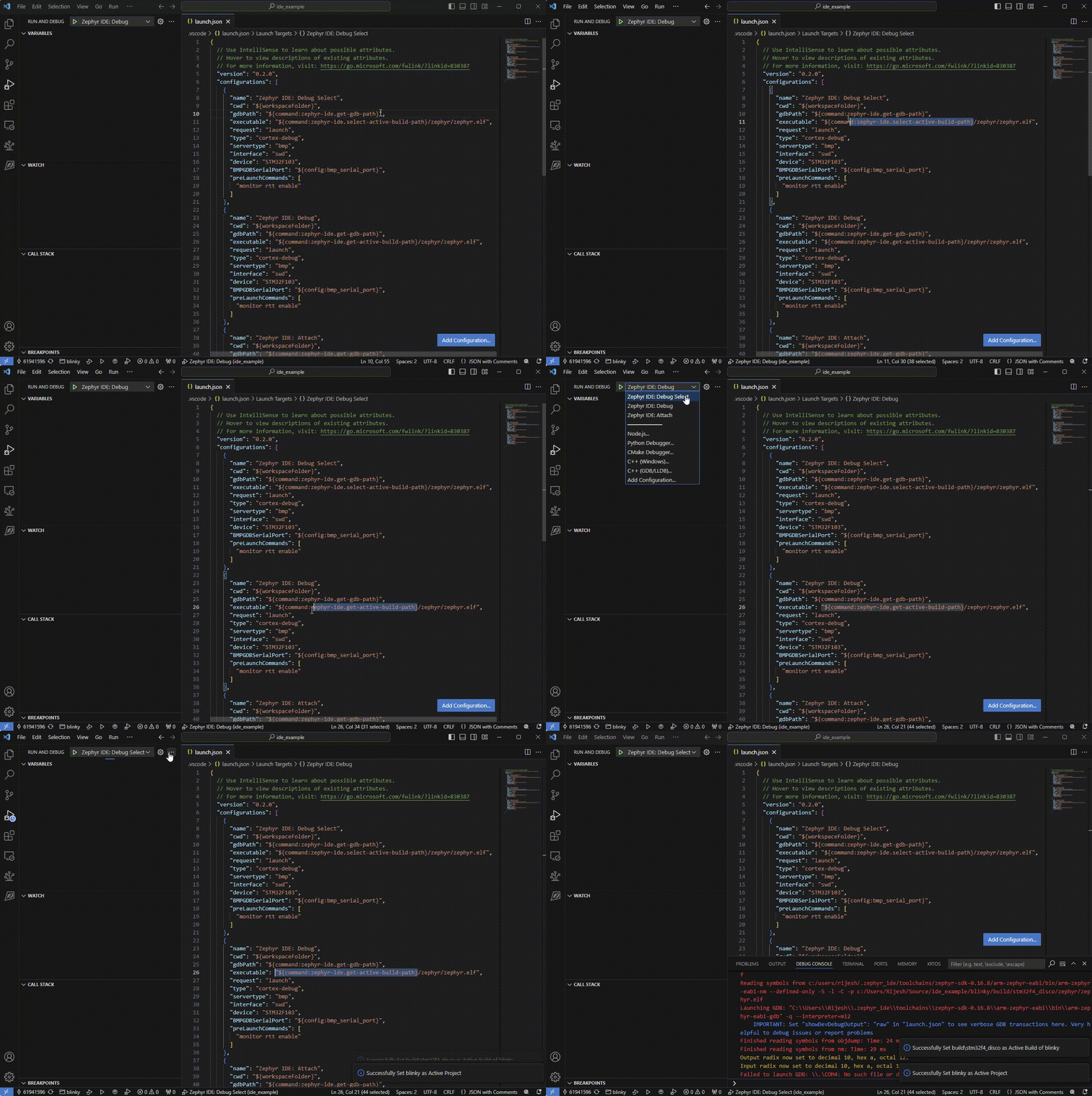
The Debug Select Configuration allows a user to select what project/build to debug for and uses zephyr-ide.select-active-build-path, the other two default configurations use the zephyr-ide.get-active-build-path to debug the current active project as shown in the taskbar or active project panel.
Custom Variables in Launch Configuration
If there is a variable you want associated with a project/build that needs to be available for your launch configuration, you can use the zephyr-ide.get-active-project-variable or zephyr-ide.get-active-build-variable.
In your zephyr-ide.json file, create a vars variable in your project or the buildConfig and define a custom variable:
zephyr-ide.json:
{ "projects": { "blinky": { "name": "blinky", "vars": { "custom_var": "custom_var" }, "buildConfigs": { "build\\stm32f4_disco": { "relBoardDir": "external\\zephyr\\boards", "board": "stm32f4_disco", "relBoardSubDir": "external\\zephyr\\boards\\st\\stm32f4_disco", "vars": { "jlink_var": "STM32F401RE", "bmp_port": "COM3" } } } } }}Then in launch.json you can access the variable using the input command:
launch.json:
{ "inputs": [ { "id": "getCustomBuildVariable", "type": "command", "command": "zephyr-ide.get-active-build-variable", "args": "bmp_port" } ], "configurations": [ { "name": "Zephyr IDE: Debug", "BMPGDBSerialPort": "${input:getCustomBuildVariable}" } ]}