Workspace Configuration
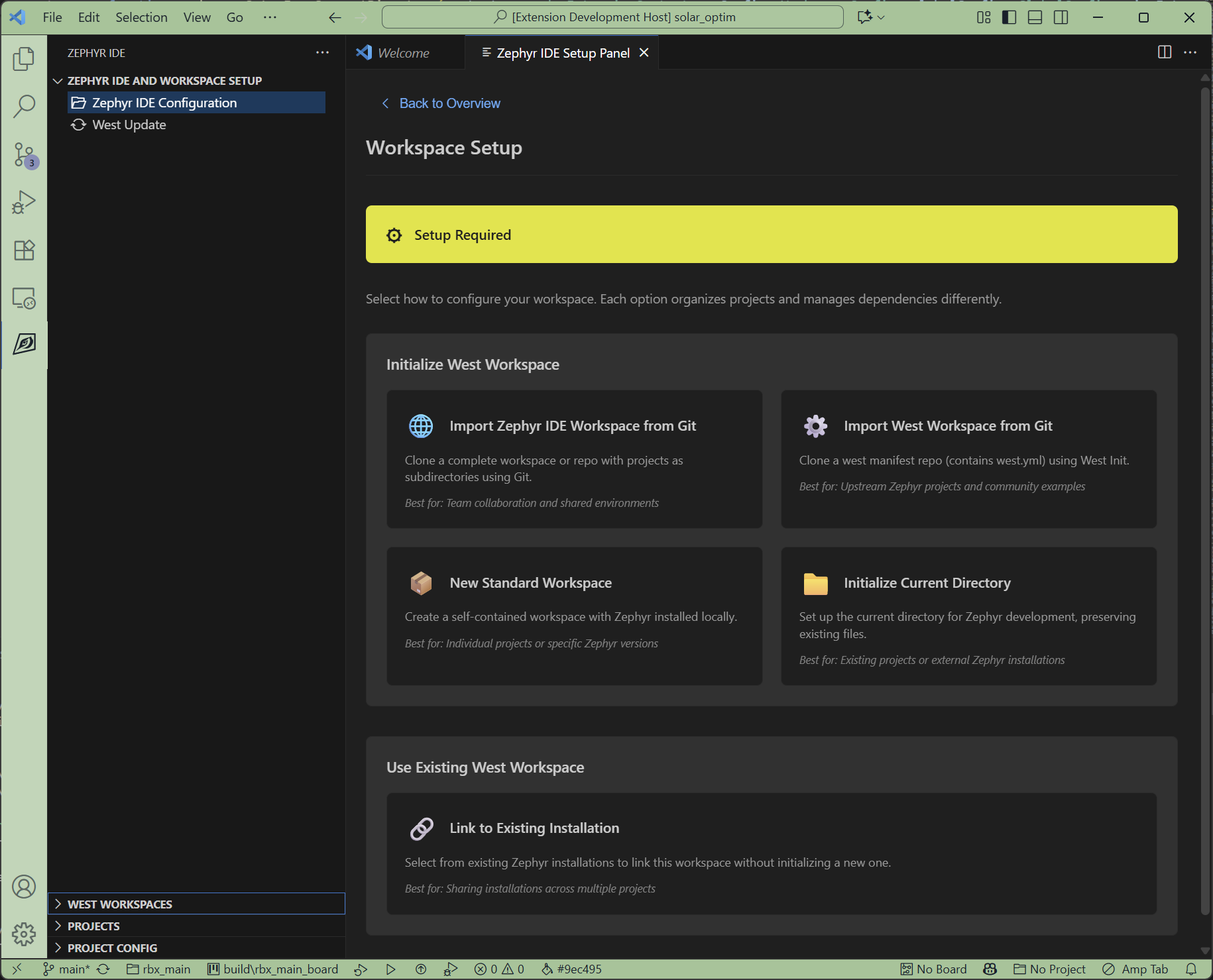
Click the Workspace card to configure your west workspace. You have several options for setting up your Zephyr development environment.
Workspace Setup Methods
1. Zephyr IDE Workspace from Git
Clone a repository that contains a pre-configured Zephyr IDE workspace setup. This is useful when working with a team project that already has Zephyr IDE configured.
2. West Workspace from Git
Clone a west-based Zephyr repository from Git. This allows you to start with an existing west project.
3. Standard Workspace
Create a fresh workspace in the current folder with:
- Python virtual environment setup
- West installation
- Zephyr repository initialization
- Optional: Choose between minimal or full Zephyr installation (minimal is recommended for faster setup)
4. Open Current Directory
Use the current folder as a west workspace. When selected, you can choose how to configure it:
- Use .west folder - Use an existing
.westconfiguration in the directory (recommended if already initialized) - Use west.yml file - Use an existing
west.ymlmanifest file - Create new west.yml - Create a new manifest file for a fresh workspace
- Use external Zephyr installation - Link to an externally managed Zephyr installation
Workspace Setup Process
When setting up a new workspace, the extension will:
- Setup West Environment - Create a Python virtual environment and install west
- West Init - Initialize the workspace with a west.yml manifest file
- West Update - Clone Zephyr and its dependencies into the workspace
The folder structure after setup will typically look like:
workspace/+-- .west/ # West configuration+-- .venv/ # Python virtual environment+-- zephyr/ # Zephyr RTOS source+-- modules/ # Zephyr modules and dependencies+-- your-app/ # Your application folder (with west.yml)Workspace Setup Options
During workspace initialization, you can choose:
- Installation type: Minimal (recommended, faster) or Full (all features)
- Board support: Select specific board vendors (e.g., STM32, Nordic, ESP32, Raspberry Pi Pico)
- Path prefix: Where Zephyr and modules will be installed relative to your application
The west.yml file controls what gets installed. A minimal configuration only includes Zephyr and essential HALs, while a full installation includes all available modules.
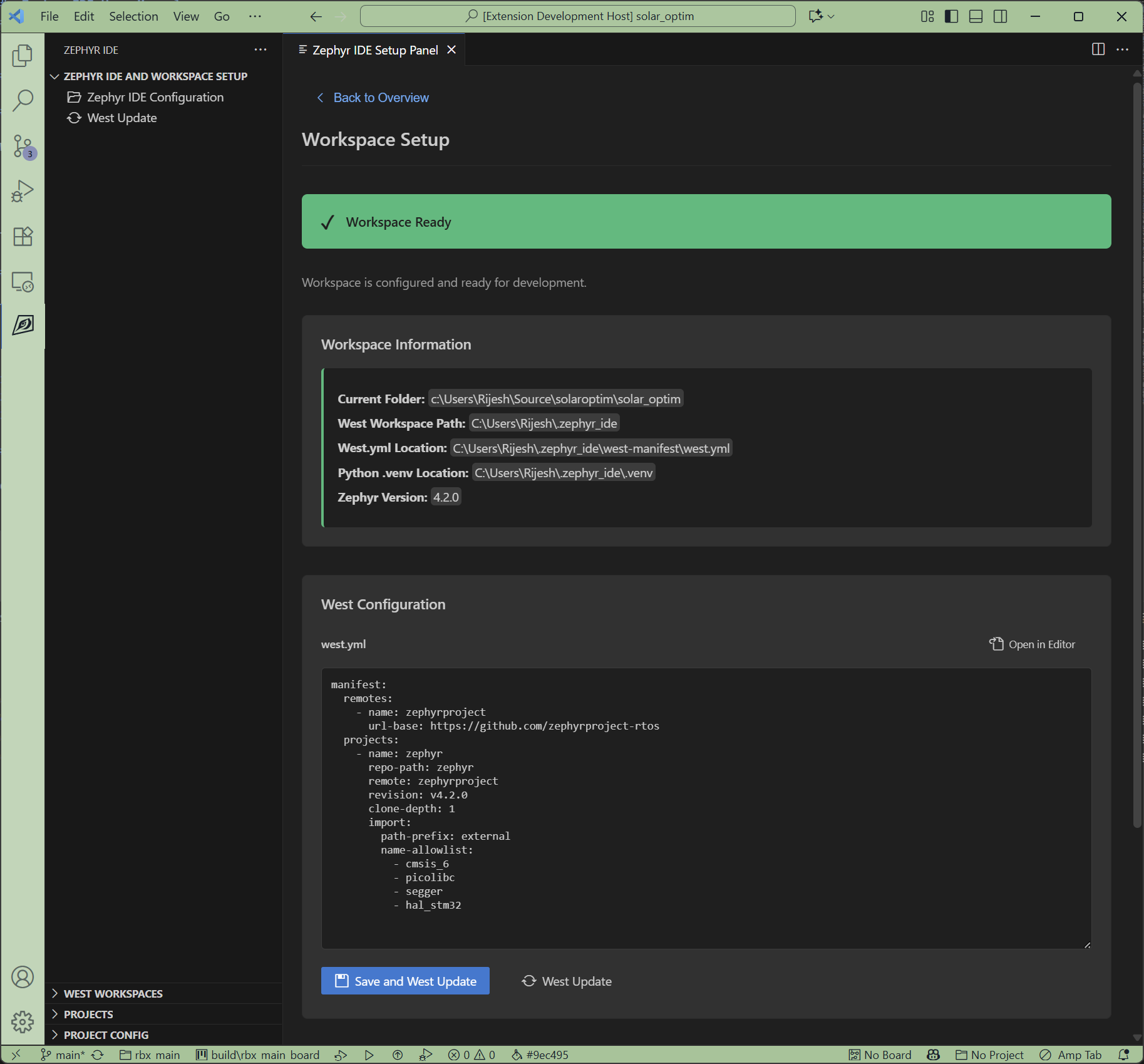
Configured Workspace
Once configured, the workspace panel will display your workspace information and allow you to directly update the west.yml file: