Build Dashboard, Memory Analysis & Advanced Tools
Build Dashboard
Section titled “Build Dashboard”The Build Dashboard (Zephyr IDE: Open Build Dashboard) is the central analysis panel for a build. It provides:
- Memory analysis — ROM and RAM usage with section-level breakdown and symbol tables
- Kconfig editor — browse, search, and inspect all Kconfig symbols and their current values
- Devicetree viewer — explore the compiled devicetree nodes and properties
- ELF stats — binary size information from the linked ELF
After each build, run Zephyr IDE: Zephyr Dashboard Report to refresh the dashboard data for the active build. The Kconfig button in the Active Project view opens the dashboard directly by default (zephyr-ide.activeViewKconfigButton).
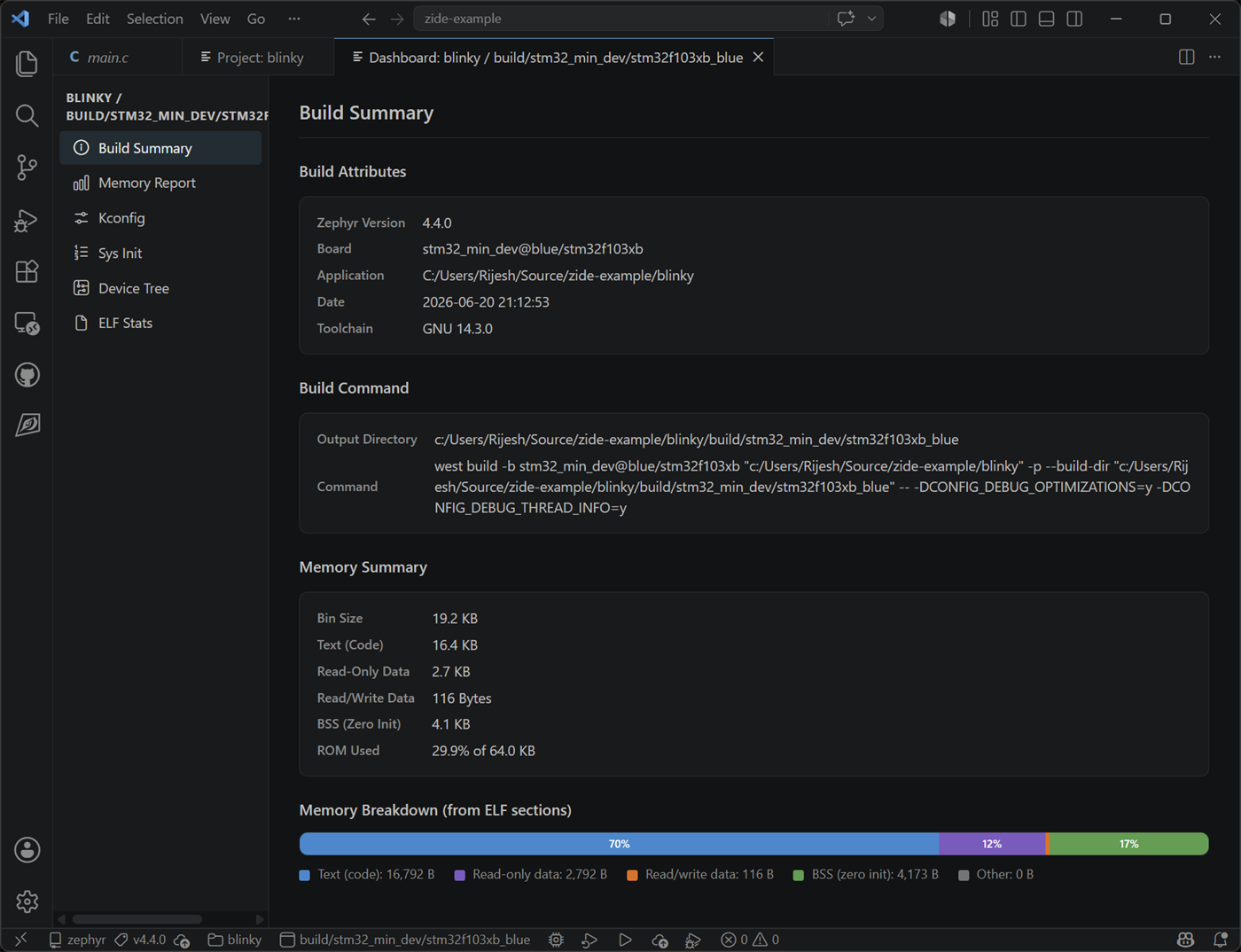
Build Summary — key build attributes (Zephyr version, board, toolchain, west build command), a Memory Summary table, and a colour-coded Memory Breakdown bar chart:
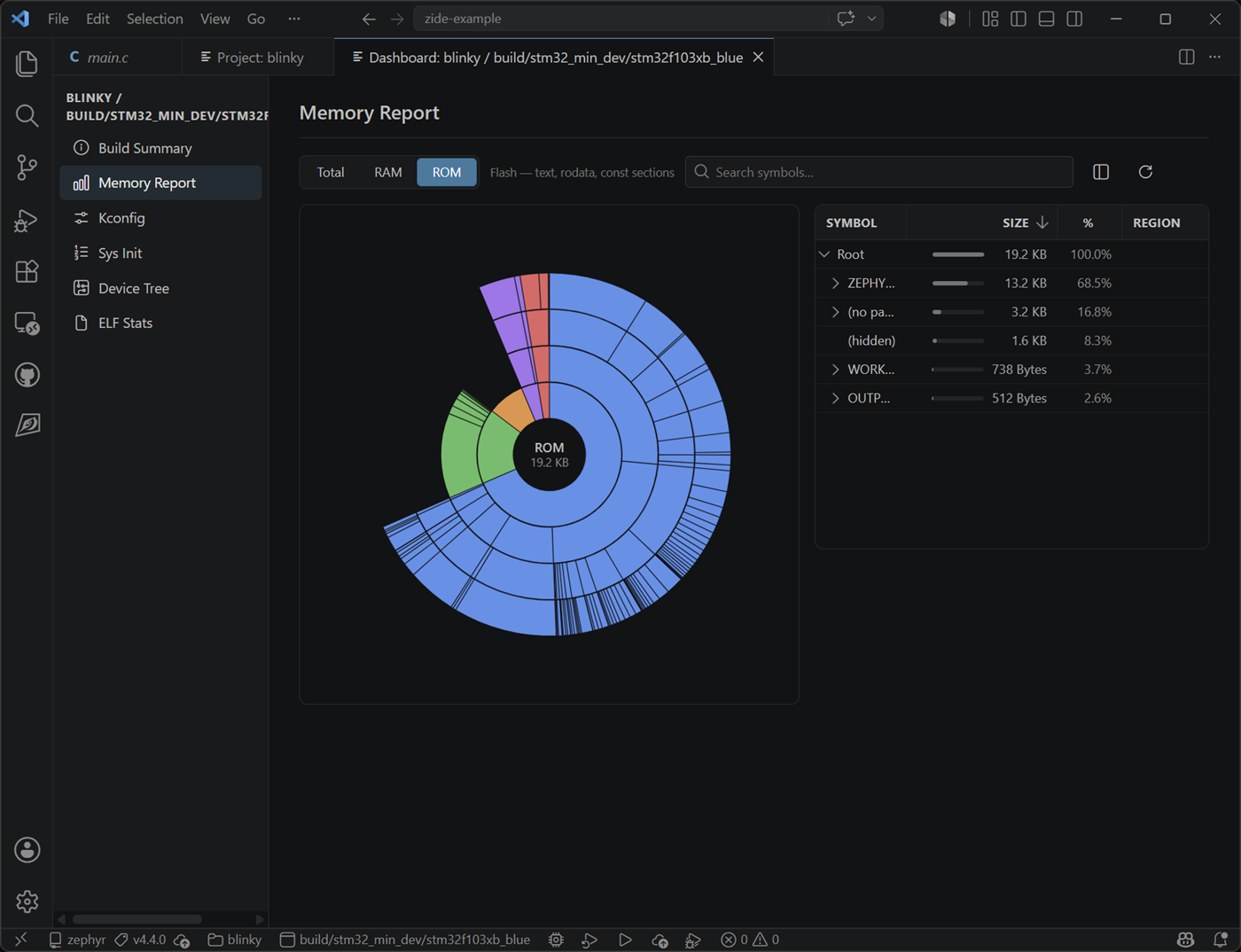
Memory Report — interactive sunburst chart that drills down into RAM and ROM usage by source-tree path. Switch between Total, RAM, ROM, and region-specific tabs; hover or click any segment to inspect the symbol hierarchy and exact byte counts:
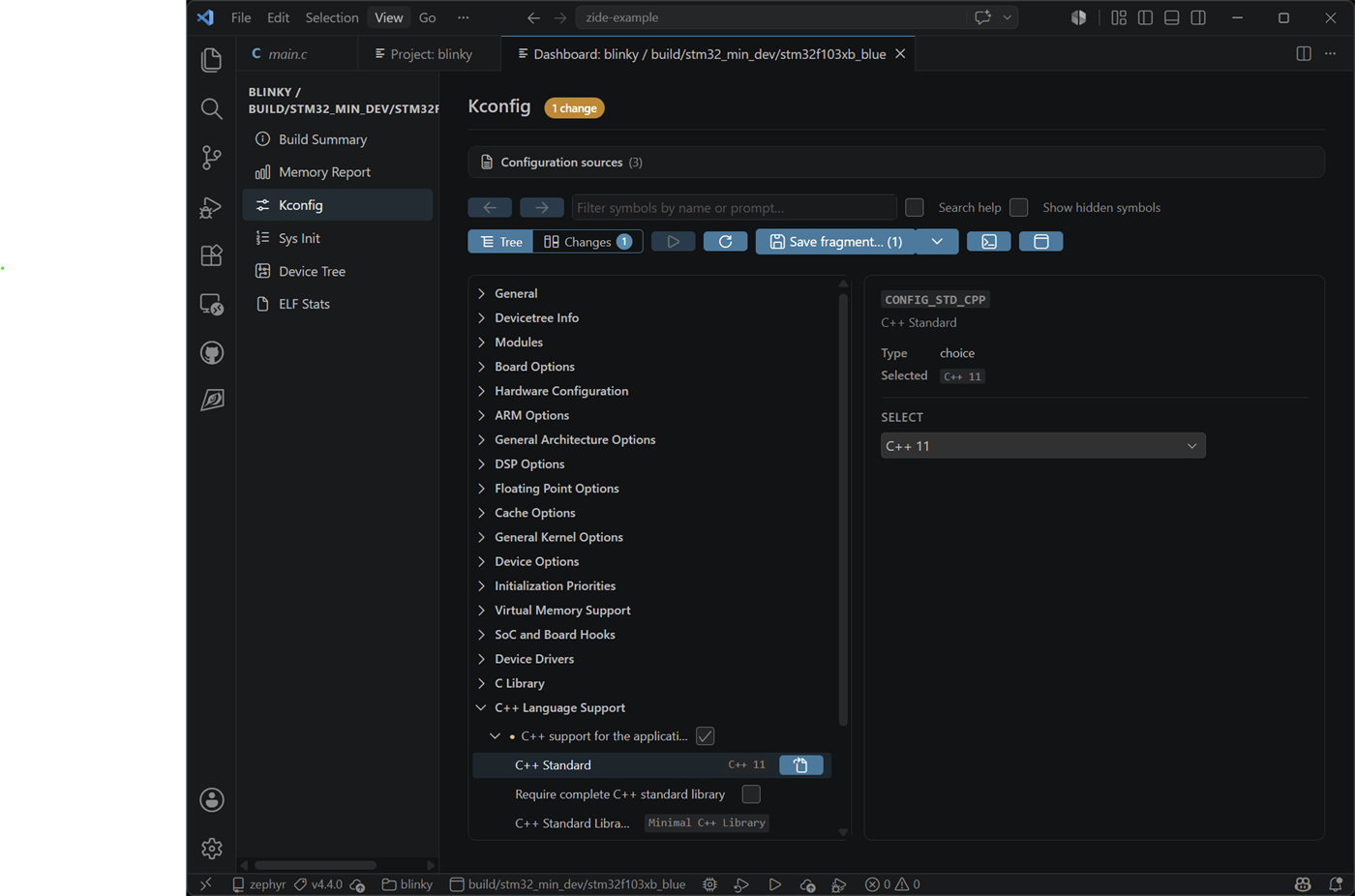
Kconfig — interactive browser for the build’s resolved Kconfig tree. Filter by symbol name, toggle between Tree and Changes modes, and click any symbol to see its type, value, help text, and defining file. Use Save fragment to export a .conf snippet of your changes:
ROM / RAM Reports
Section titled “ROM / RAM Reports”Stand-alone text reports generated in the terminal:
Zephyr IDE: Zephyr ROM ReportZephyr IDE: Zephyr RAM Report
DTSh Shell
Section titled “DTSh Shell”Zephyr IDE: Start DTSh Shell— interactive devicetree shell for querying nodes, bindings, and properties
Build Customization
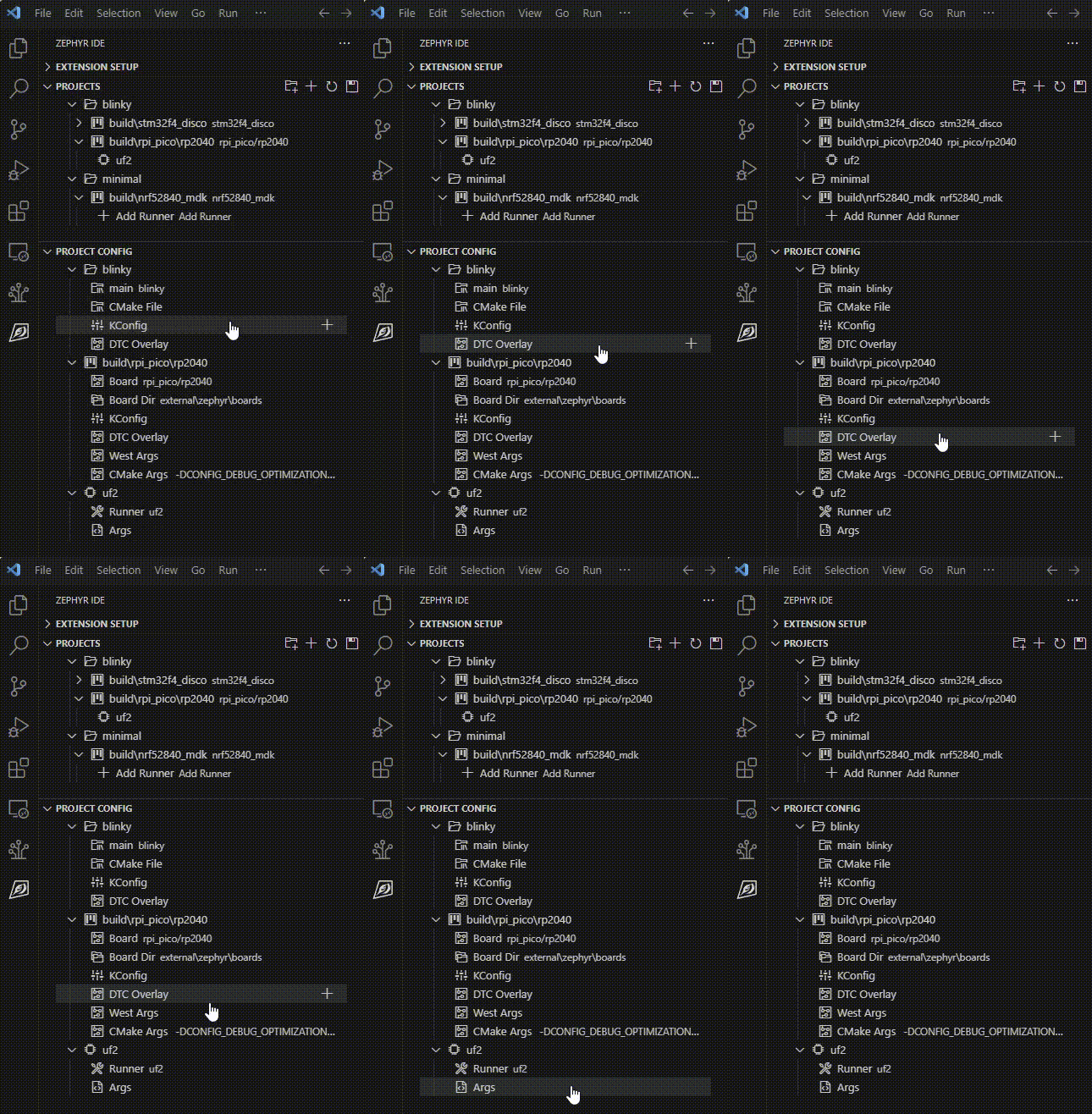
Section titled “Build Customization”The IDE allows modifying the west and cmake arguments per build. It allows the user to provide runner arguments, and specify DTS overlay and KConfig files per project or build.
Menu Config and GUI Config
Section titled “Menu Config and GUI Config”The Zephyr Menu Config or GUI Config may be run from the active project panel. By default the Kconfig button opens the build dashboard; it can be set to launch Menu Config or GUI Config instead via the zephyr-ide.activeViewKconfigButton setting (and zephyr-ide.projectViewKconfigButton for the Projects view). See Configuration Reference for details.
Automatic Project Targeting
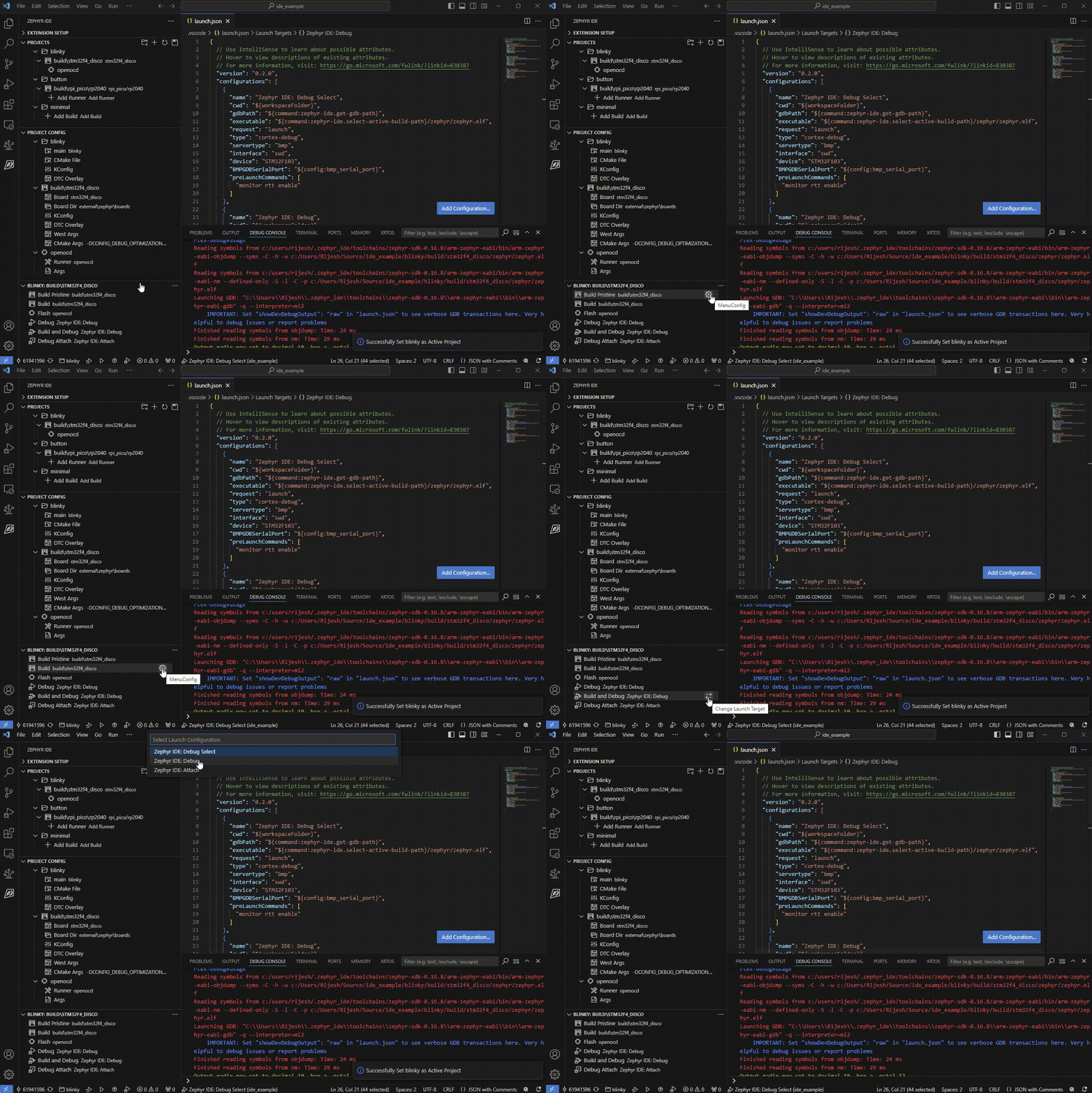
Section titled “Automatic Project Targeting”When you open a file, the extension can automatically switch the active project to the one that owns the file. This is enabled by default and controlled with the zephyr-ide.automaticProjectSelection setting, or via:
Zephyr IDE: Enable Automatic Active Project TargetingZephyr IDE: Disable Automatic Active Project Targeting
West Terminal
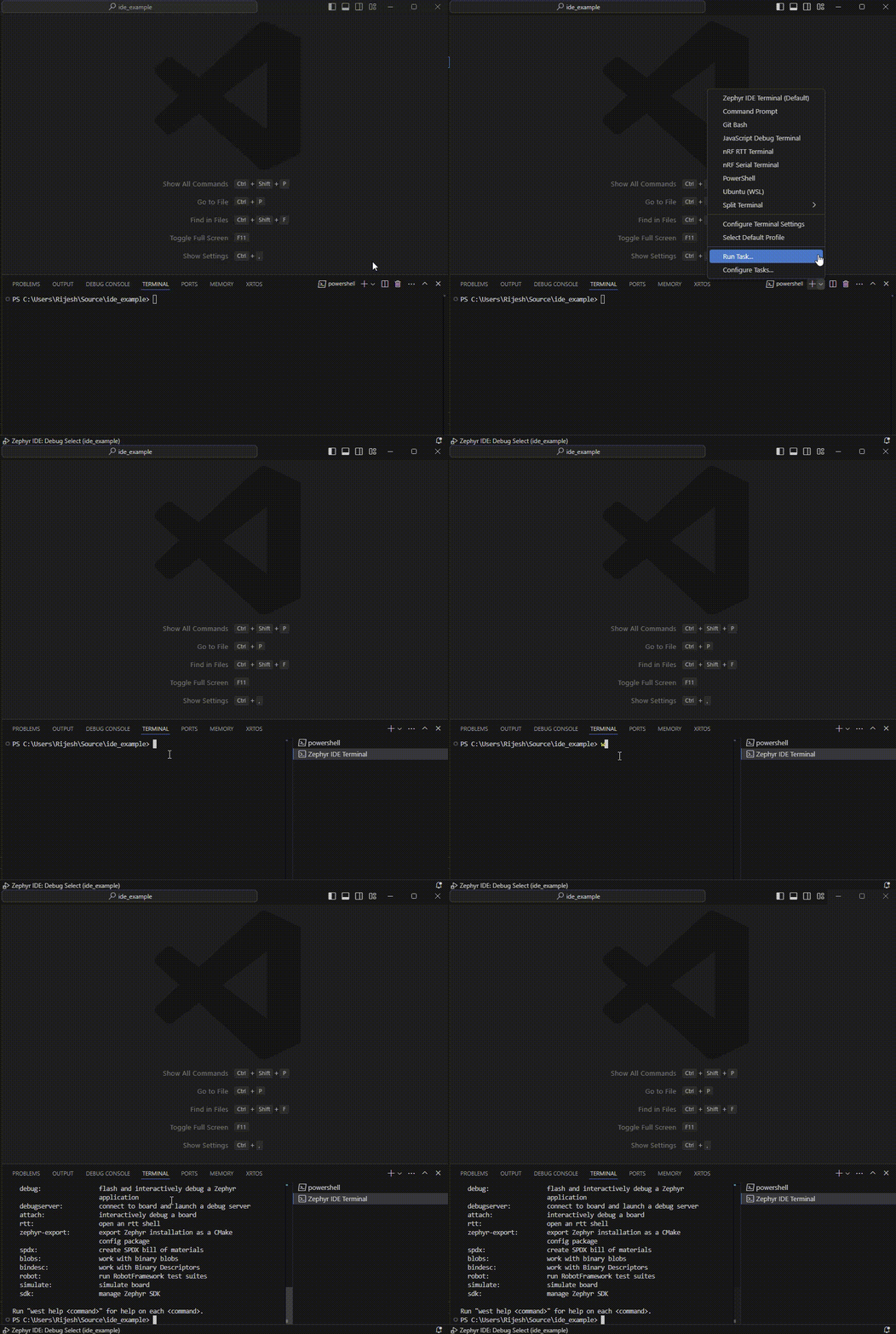
Section titled “West Terminal”Custom west commands may be run using the inbuilt Zephyr IDE Terminal.